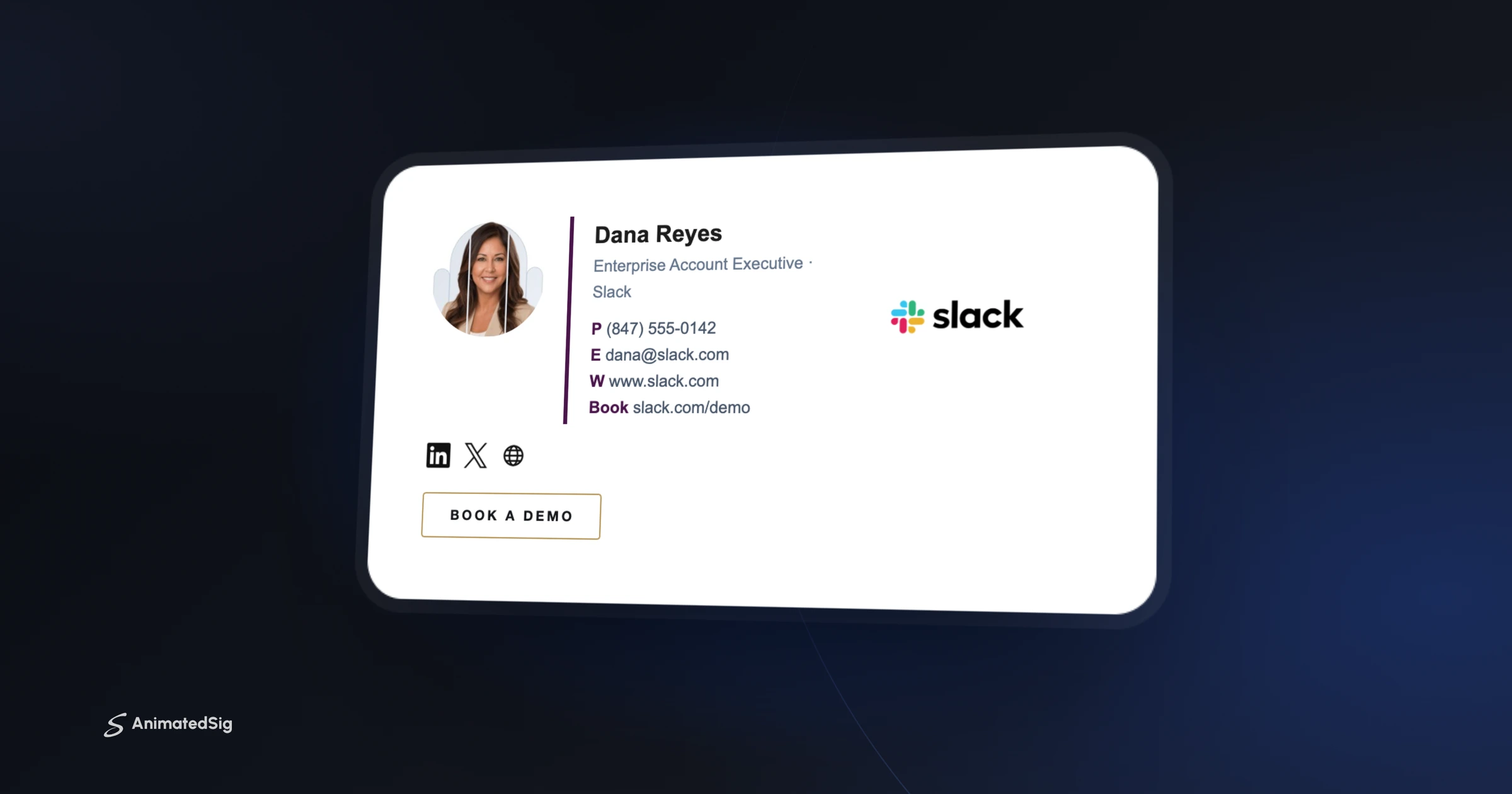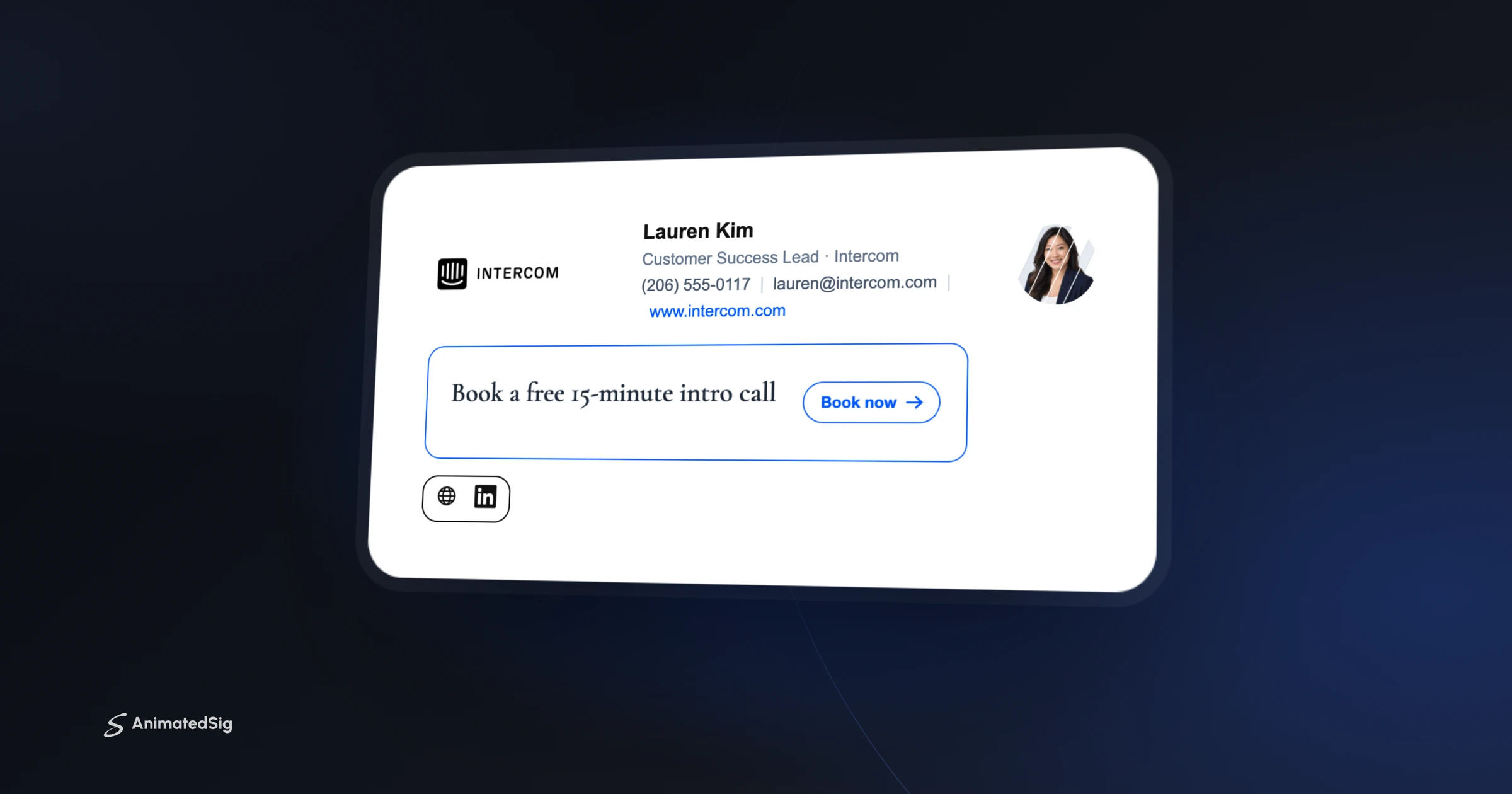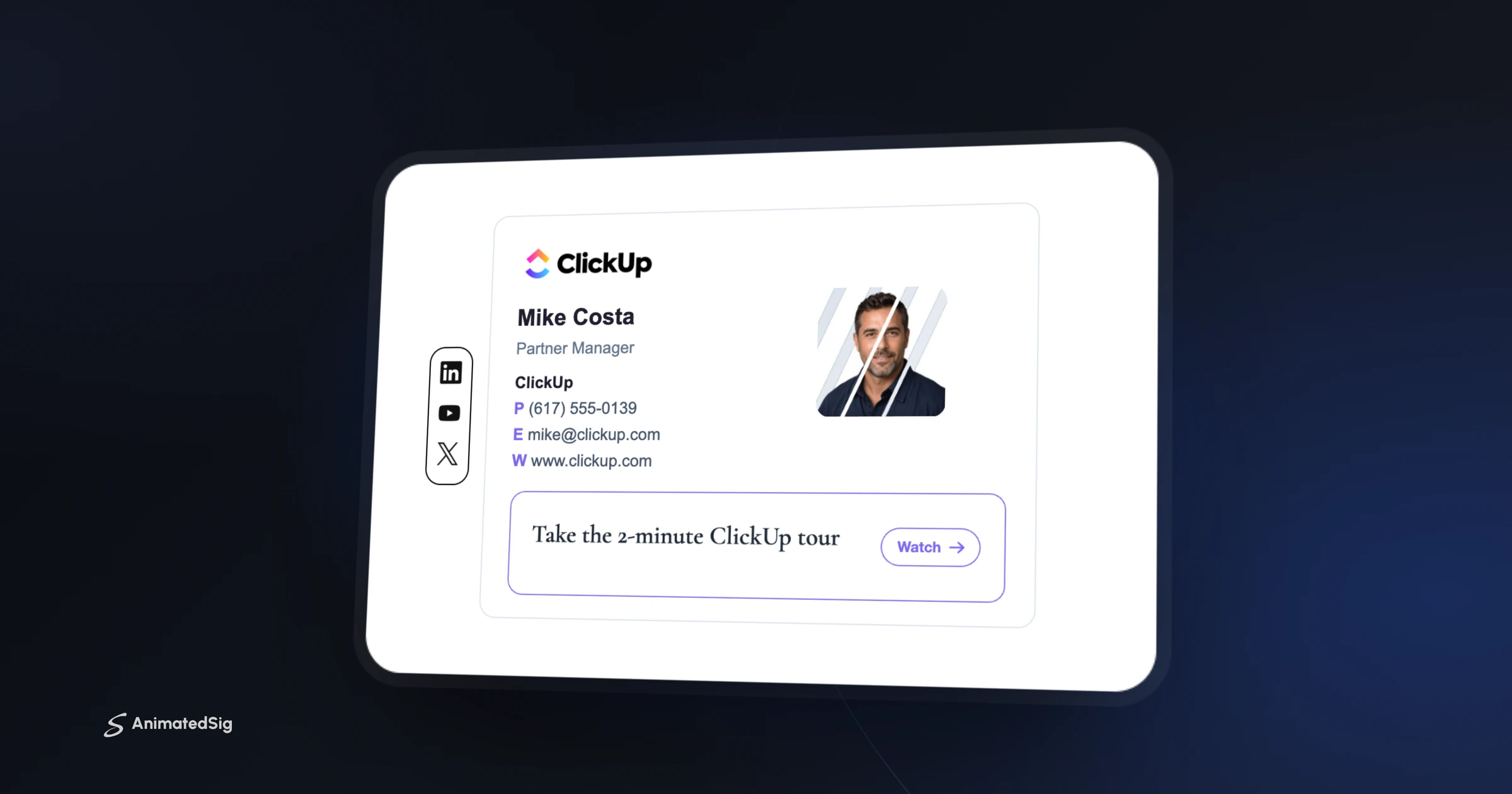

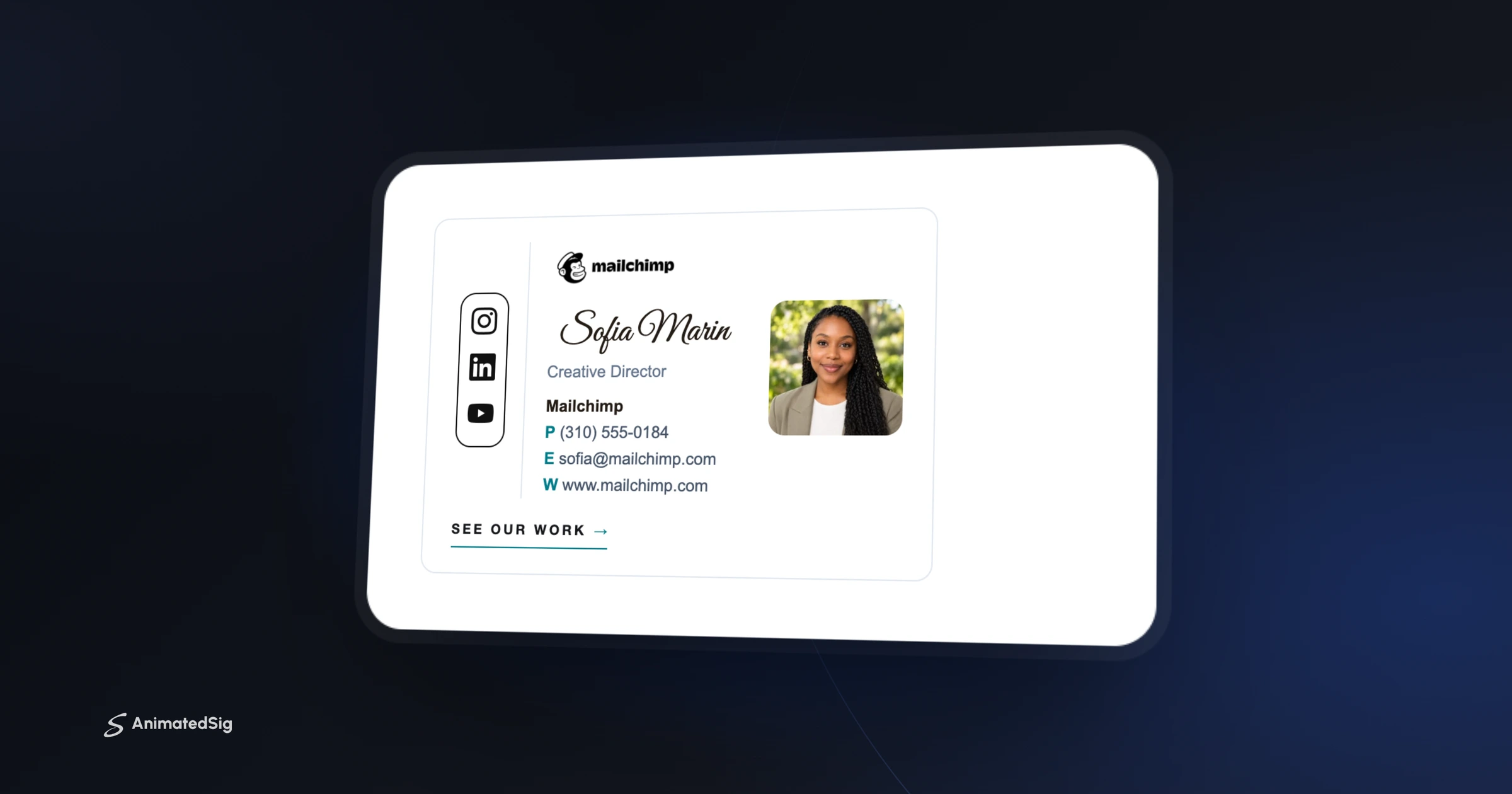
Matching team email signatures come from one design: pick a single layout, collect everyone's details in a shared spreadsheet, standardize headshots, agree on one call to action, then send each person their own finished signature with install steps for their email app. Keep the spreadsheet as the source of truth so updates take minutes.
Open a long email thread with a client and look at the signatures. One person has a logo, another has a quote, a third has three phone numbers in two fonts. None of it is wrong on its own, but together it looks like a company that hasn't got its act together.
How to roll out team email signatures in six steps
1. Pick one layout and lock it
Choose a single template for everyone. Decide once which details appear, in what order, and which brand color carries the name and links. The only things that should change from person to person are the personal details.
Write the decisions down in a short style note: which fields are required, which are optional (such as a mobile number or pronouns), and how job titles are written. That note settles most questions before anyone asks them. For what belongs in the layout, see what to put in a professional email signature.
2. Collect everyone's details in one place
A simple shared spreadsheet works: full name, job title, direct phone, email and a headshot for each person. Agree on formats up front, such as how phone numbers are written and whether titles are capitalized, so nothing needs fixing later.
| Column | Example | Why it matters |
|---|---|---|
| Full name | Sofia Marin | Exactly as it should appear, including a preferred first name |
| Job title | Creative Director | One capitalization style for everyone |
| Direct phone | +1 310 555 0184 | One format, with country code if you work abroad |
| Headshot file | sofia-marin.jpg | Same crop, background and shape for all |
| Email app | Gmail | So you know which install guide to send |
3. Make the headshots match
Mismatched photos are the fastest way to break the look. Use the same crop, background and shape for everyone. If a professional shoot isn't possible, ask for phone photos against a plain wall in daylight and crop them all the same way. Our guide to putting a photo in your email signature covers sizing and round crops that survive Outlook.
4. Share one call to action
Decide what the whole company wants readers to do this quarter, such as book a demo, read a launch post or register for an event (more ideas in 8 call-to-action ideas), and use the same banner or button across the team. You can change it for everyone at once when the campaign ends.
5. Send install instructions with the signature
- Send each person their own finished signature, not a template to fill in.
- Include the guide for the email app they use: Gmail, Outlook or Apple Mail.
- For Outlook users, how to add an animated signature to Outlook explains the differences between the new, classic and web versions.
- Ask everyone to send a test email to one person who checks them all.
6. Plan for changes
People change roles, phone numbers and photos. Keep the spreadsheet as the source of truth and update the signature from it, so you're never rebuilding someone's signature from scratch.
Signature tools vs. server-side footers
If your company runs on Google Workspace or Microsoft 365, IT may suggest adding signatures centrally instead. Both platforms can do a version of this, with trade-offs.
- Google Workspace: admins can use the Append footer setting to add text to everyone's outgoing email. Google notes that users don't see the footer while writing and can't change or remove it. It also says admins can use the Gmail API to apply the same signature to everyone's settings.
- Microsoft 365: admins can create a mail flow rule that adds a disclaimer or signature to messages, with tokens such as %%DisplayName%% and %%Title%% filled in from each sender's account details.
Server-side footers suit legal text that must appear on every message. For a designed signature with headshots, brand colors and a button, most teams install it in each person's email app, where the sender can see it as they write. The two can coexist: a polished signature from each person, plus a short legal line added by the server.
Keeping team email signatures consistent over time
- Onboarding: add the signature to your new-hire checklist so day-one emails already match.
- Role changes: update the spreadsheet first, then regenerate and resend that person's signature.
- Departures: remove the person's row from the spreadsheet so their details don't get reused by mistake.
- Campaigns: when the shared call to action changes, send everyone the new version on the same day.
- Quarterly check: ask each person to send one test email so you can spot anyone still using an old version.
Common mistakes to avoid
- Sending a template for people to fill in themselves. Someone will change the font.
- Letting each person choose their own social icons. Agree on a company set, such as LinkedIn plus one other network.
- Mixing animated and static versions. If one person's logo moves, everyone's should.
- Forgetting phone apps. Outlook's mobile apps keep their own signature setting, so include phone steps in your instructions.
Get your whole team set up
Start with one person's signature in the editor, get it approved, then build everyone else's from the same design. It's a quick way to make the whole team look like it belongs together.
Frequently asked questions
How do I make everyone's email signature the same?
Choose one layout, collect each person's details in a shared spreadsheet, standardize headshots, and send each person their own finished signature with install instructions for their email app. Ask everyone to send a test email so one person can check they all match.
Can I update everyone's signature at once?
With a shared design, you change the template once and regenerate each person's signature from the same spreadsheet. Google Workspace and Microsoft 365 admins can also add footers centrally on the mail server, which works well for plain legal text.
What should be the same in every team signature?
Layout, fonts, brand colors, logo, icon style and the shared call to action. Only personal details like name, title, phone and photo should differ. Writing these rules down in a short style note keeps new hires consistent too.
Can Google Workspace admins set everyone's Gmail signature?
Partly. The Append footer setting adds text to all outgoing mail, but users can't see or edit it. Google also says admins can use the Gmail API to apply the same signature to everyone's settings, which users can then edit. Many teams simply give each person a finished signature to paste.
Ready to build yours?
Pick a template, add your details and watch it animate live. Free to build and preview, pay once when you're ready to install.
Build my signature for free