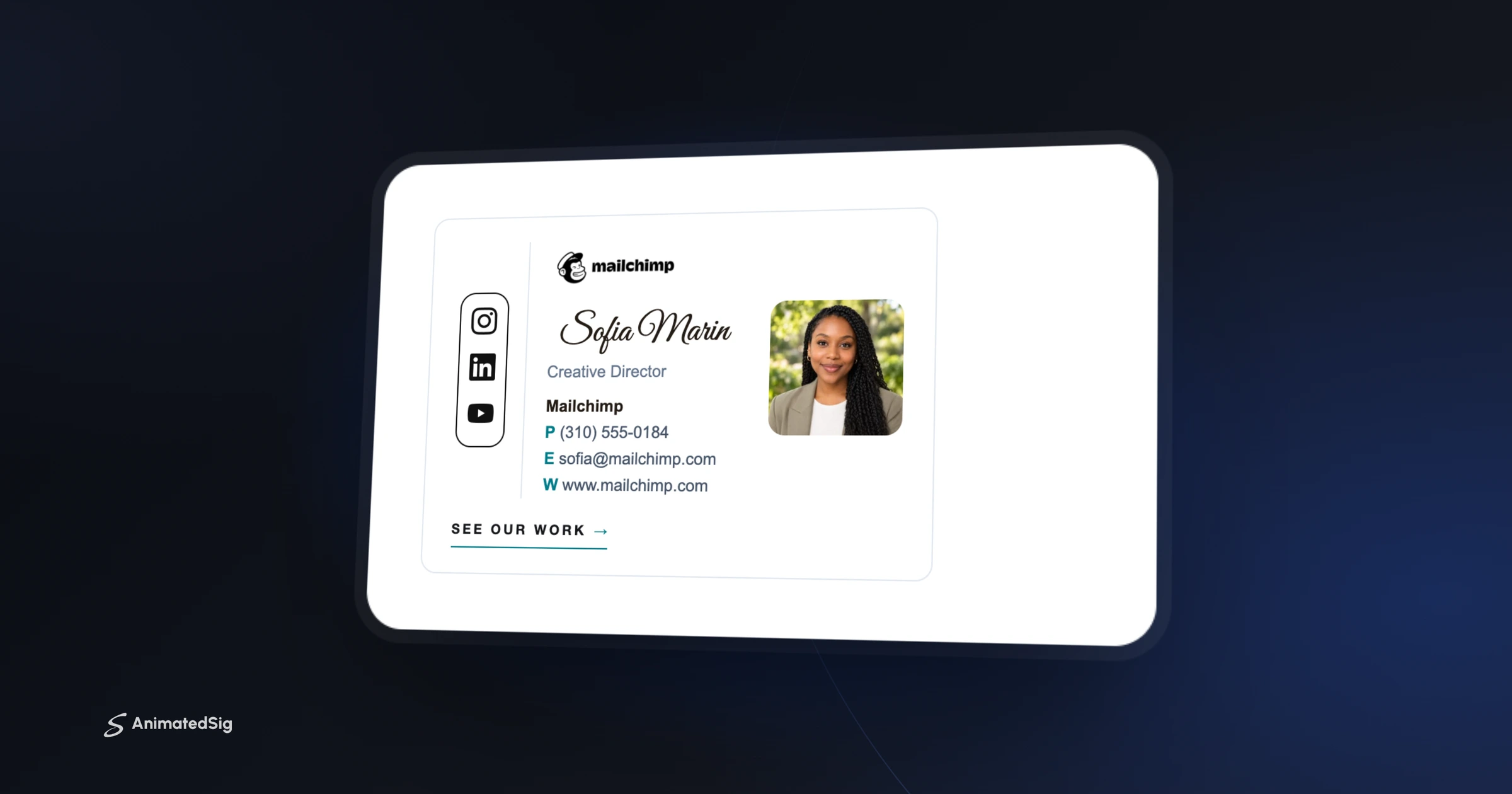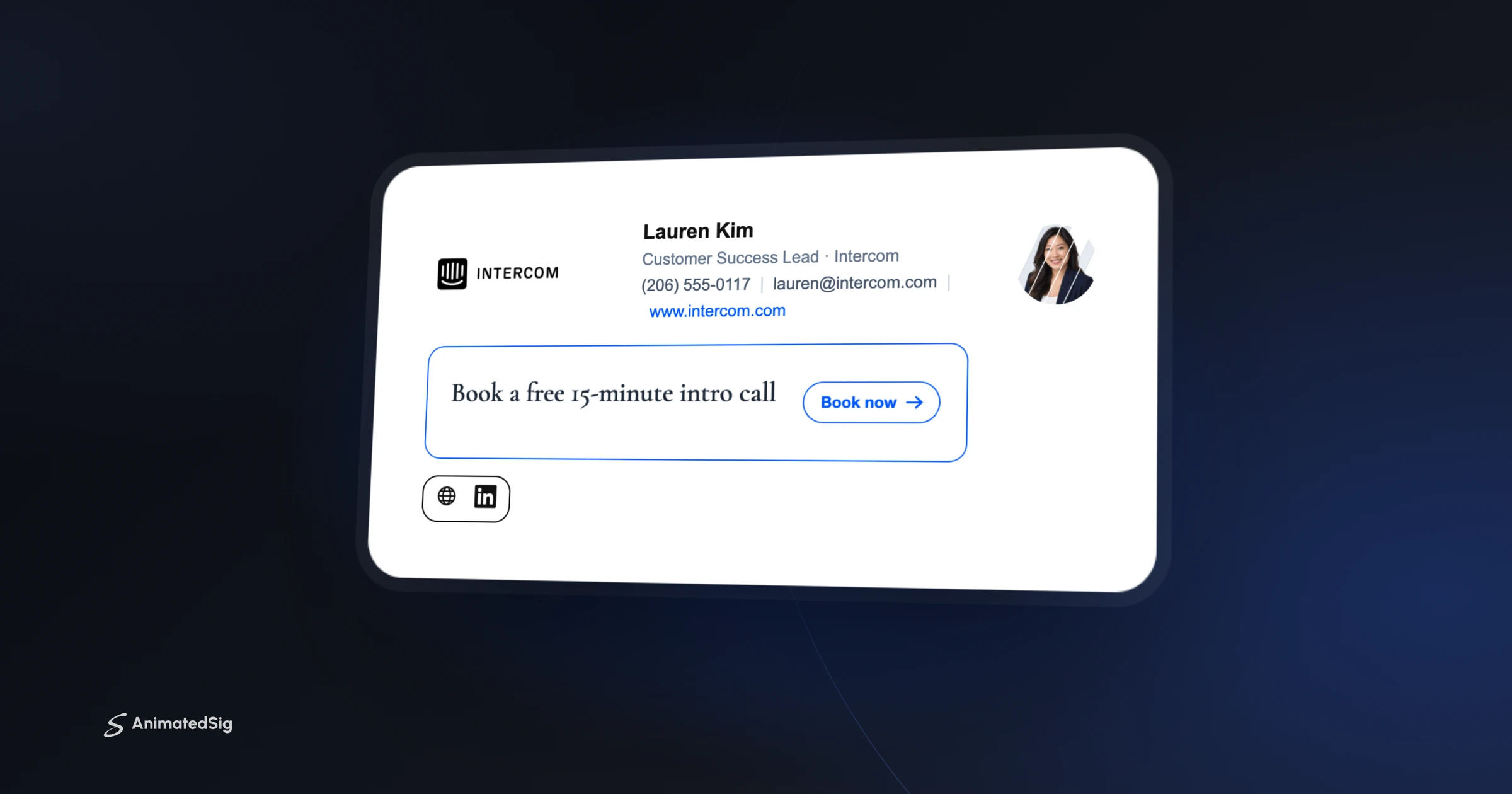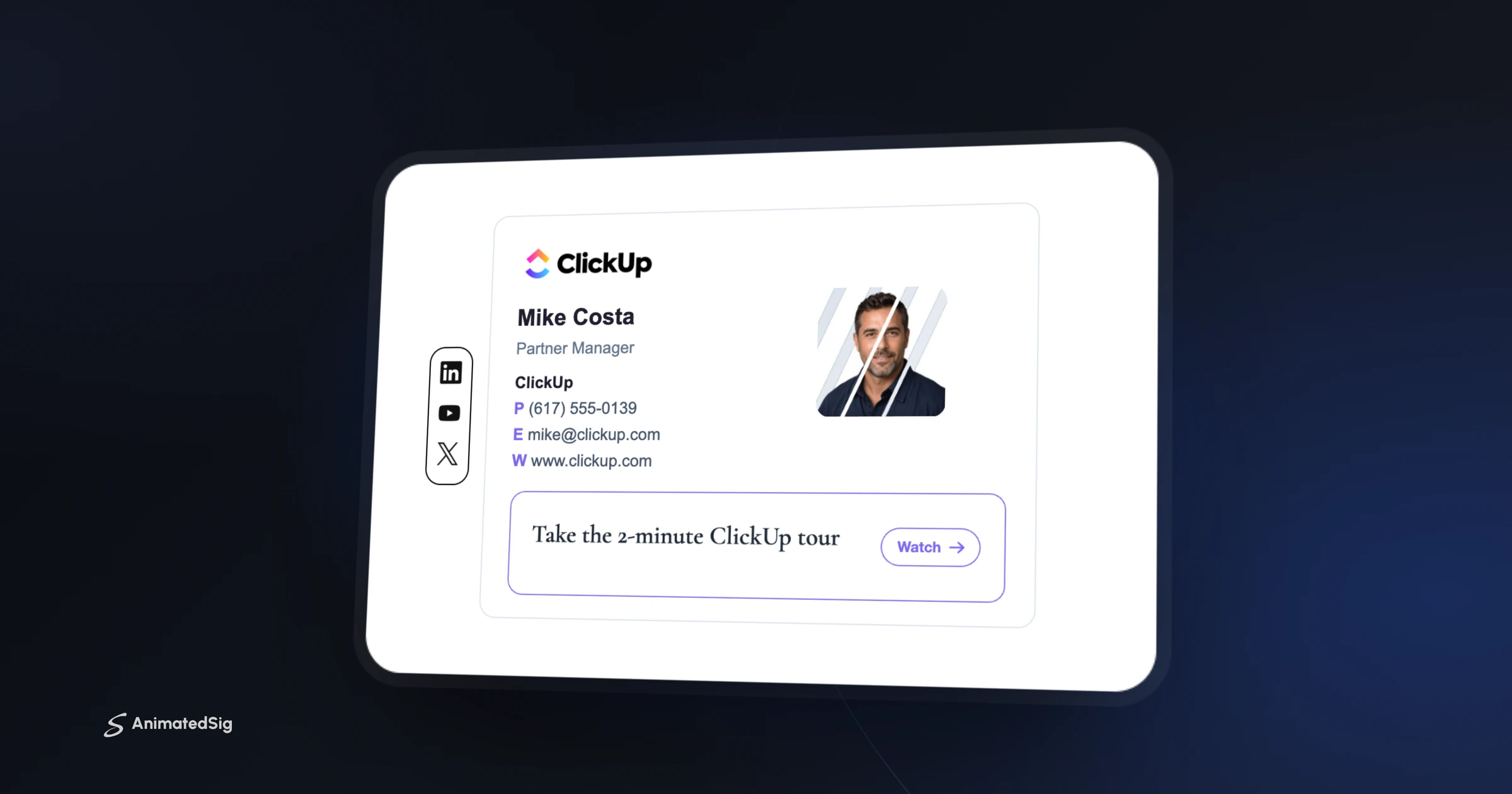

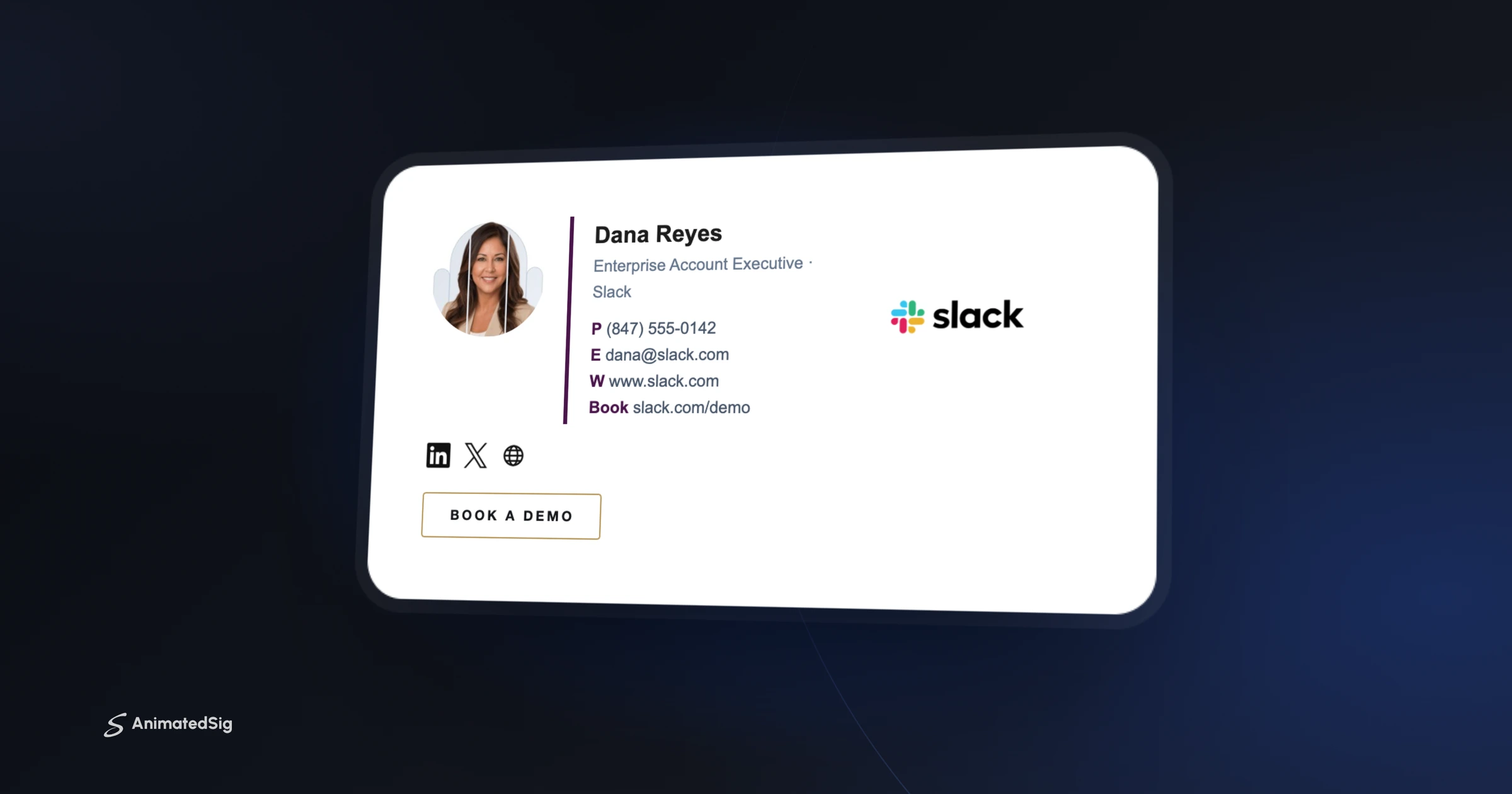
To add a GIF to your Gmail signature, open Gmail on a computer, click Settings, then See all settings. On the General tab, scroll to Signature, click the image icon in the editor, insert your GIF (a hosted web address works best), then click Save Changes at the bottom of the page. Gmail plays the animation for recipients.
That's the short version. The details matter, though, because the way you insert the image decides whether it stays sharp, stays animated and shows up for everyone you email. This guide walks through each step and the problems people hit most often.
How to add a GIF to your Gmail signature, step by step
Gmail signatures are set up in Gmail on the web. The phone apps have their own, simpler signature setting, covered further down.
- 1Open Gmail in a browser on your computer.
- 2Click the gear icon at the top right, then click See all settings.
- 3Stay on the General tab and scroll down to the Signature section.
- 4Click Create new (or select an existing signature), and name it if asked.
- 5Place your cursor where the GIF should go, then click the Insert image icon in the signature toolbar.
- 6Choose Web Address (URL), My Drive or Upload, and add your GIF.
- 7Under Signature defaults, pick the signature for new emails and for replies and forwards.
- 8Scroll to the very bottom of the page and click Save Changes. Then send yourself a test email.
URL, Drive or upload: which way to insert the GIF
Google's signature troubleshooting page lists three ways to add an image: a web address (URL) for an image that's publicly available online, an image from My Drive, or an upload from your device. If one method fails, Google suggests trying the other two.
| Method | Best for | Watch out for |
|---|---|---|
| Web Address (URL) | GIFs already hosted online, including designed signatures | The link must be public and start with https |
| My Drive | Images you keep in Google Drive | Sharing must be set to anyone with the link, or recipients see a broken image |
| Upload | A quick one-off image from your computer | May not be offered on some work or school accounts |
Some people find that Upload isn't available at all. Google notes that on some work or school accounts the only option is adding images by URL, and that Drive images need public sharing, which an administrator may have turned off. In that case, a hosted URL is the way in.
Even when upload works, a hosted image is usually the more reliable choice for a signature you'll send thousands of times. It's one file at one address, so every email points to the same image and you can update it in one place.
Gmail's signature limits
According to Google's help page, you can put up to 10,000 characters in a Gmail signature, and images count toward that limit. That's why pasting an image directly from your clipboard sometimes triggers a "signature is too long" error: the picture gets stored inside the signature as data instead of as a short link.
Google also recommends signature images around 70 to 100 pixels high and 300 to 400 pixels wide, with a maximum of 100 pixels high by 1,000 pixels wide. If your GIF looks huge or gets cut off, resize it before inserting, or click it in the editor and choose Small, Medium or Large.
Do GIFs animate in Gmail?
Yes. Gmail plays animated GIFs in the browser and in its phone apps, which Can I email tracks as supported. Your recipients' email client matters more than yours: someone reading in an older version of classic Outlook for Windows may only see the first frame.
That's why every animated piece in an Animated Sig signature ships with a static first frame that looks finished on its own. If a client freezes the animation, the signature still reads as complete instead of showing half a logo mid-reveal. For a wider look at which inboxes animate, see animated signatures in Gmail, Outlook and Apple Mail.
Gmail on your phone
The Gmail app on iPhone, iPad and Android has a separate Mobile Signature setting (on iPhone: Menu, then Settings, then Signature settings under Compose and Reply), and you set it for each account. It's a basic text field, so you can't add a GIF there.
Here's the useful part: Google says that if you don't create a signature in the Gmail app, new messages use the signature you set up on your computer. So for most people the best move is to leave Mobile Signature turned off and let the desktop signature, GIF included, do the work.
Troubleshooting a GIF in your Gmail signature
The image shows a broken icon or question mark
The image address isn't reachable by the recipient. Check that the URL is public, uses https and opens in a private browser window where you're not signed in. For Drive images, set sharing to anyone with the link.
The GIF doesn't move
Open the GIF's URL in a browser tab. If it doesn't animate there, the file itself is static. If it animates in the browser but not in the email, check which client the recipient used; older classic Outlook shows only the first frame.
Gmail says the signature is too long
An image was probably pasted in as embedded data. Delete it and re-insert it by URL. Long chunks of copied HTML from other tools can also push you past 10,000 characters.
Formatting looks wrong or has extra characters
Google suggests selecting the signature and clicking Remove formatting, then re-pasting. If Plain Text appears above the signature box, turn off Plain text mode in a new compose window (More options, the three dots) and try again.
Your signature is hidden behind three dots
In long threads, Gmail sometimes collapses repeated content. Click Show trimmed content at the bottom of the message to check that the signature is there. Your recipient sees it on your first message.
A faster route to a GIF signature
If you'd rather not hunt for hosting or resize GIFs by hand, you can build your signature free in the Animated Sig editor. Every image is hosted, sized and paired with a static fallback, so pasting into Gmail takes about a minute.
Frequently asked questions
Why can't I upload a GIF to my Gmail signature from my computer?
On some work or school accounts, Gmail only offers the Web Address (URL) option, and Drive images may need public sharing that an administrator has disabled. Host the GIF online and insert it by URL instead. If upload is offered but fails, Google suggests clearing your cache or trying another browser.
What is the character limit for a Gmail signature?
Google says a Gmail signature can hold up to 10,000 characters, and images count toward that limit. Images pasted from your clipboard can be stored as large blocks of data, which is the usual cause of a "too long" error. Inserting images by URL keeps the signature small.
Will my GIF animate when people open my email on their phone?
In most cases, yes. Gmail, Apple Mail and current Outlook apps play animated GIFs. Some older desktop versions of classic Outlook for Windows show only the first frame, so make sure that first frame looks complete on its own.
Can I add a GIF signature in the Gmail mobile app?
Not directly. The Gmail app's Mobile Signature field is plain text. If you leave it turned off, Google says the app uses the signature you set up on your computer, so set up your GIF signature in Gmail on the web and leave the mobile setting off.
Ready to build yours?
Pick a template, add your details and watch it animate live. Free to build and preview, pay once when you're ready to install.
Build my signature for free