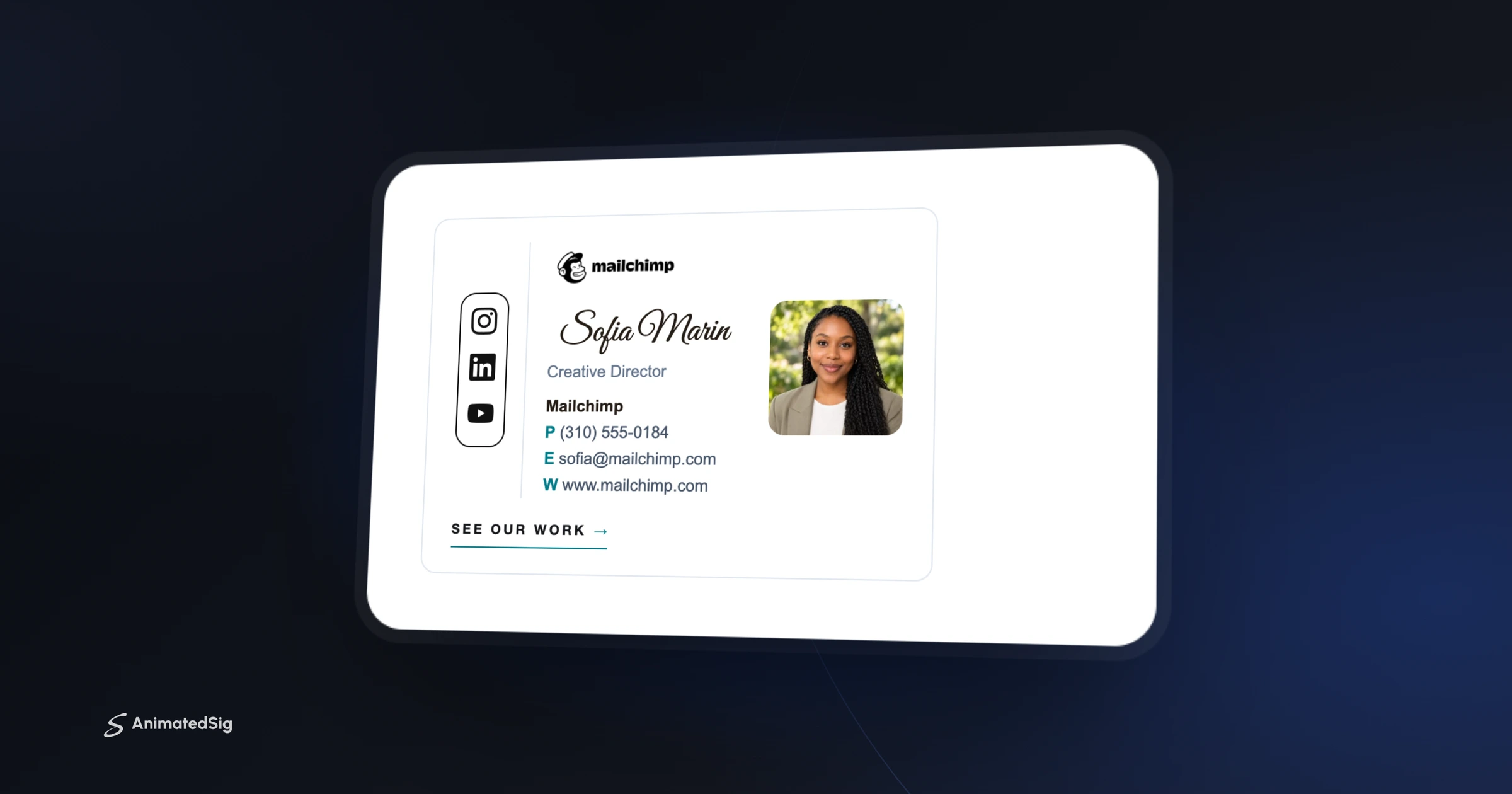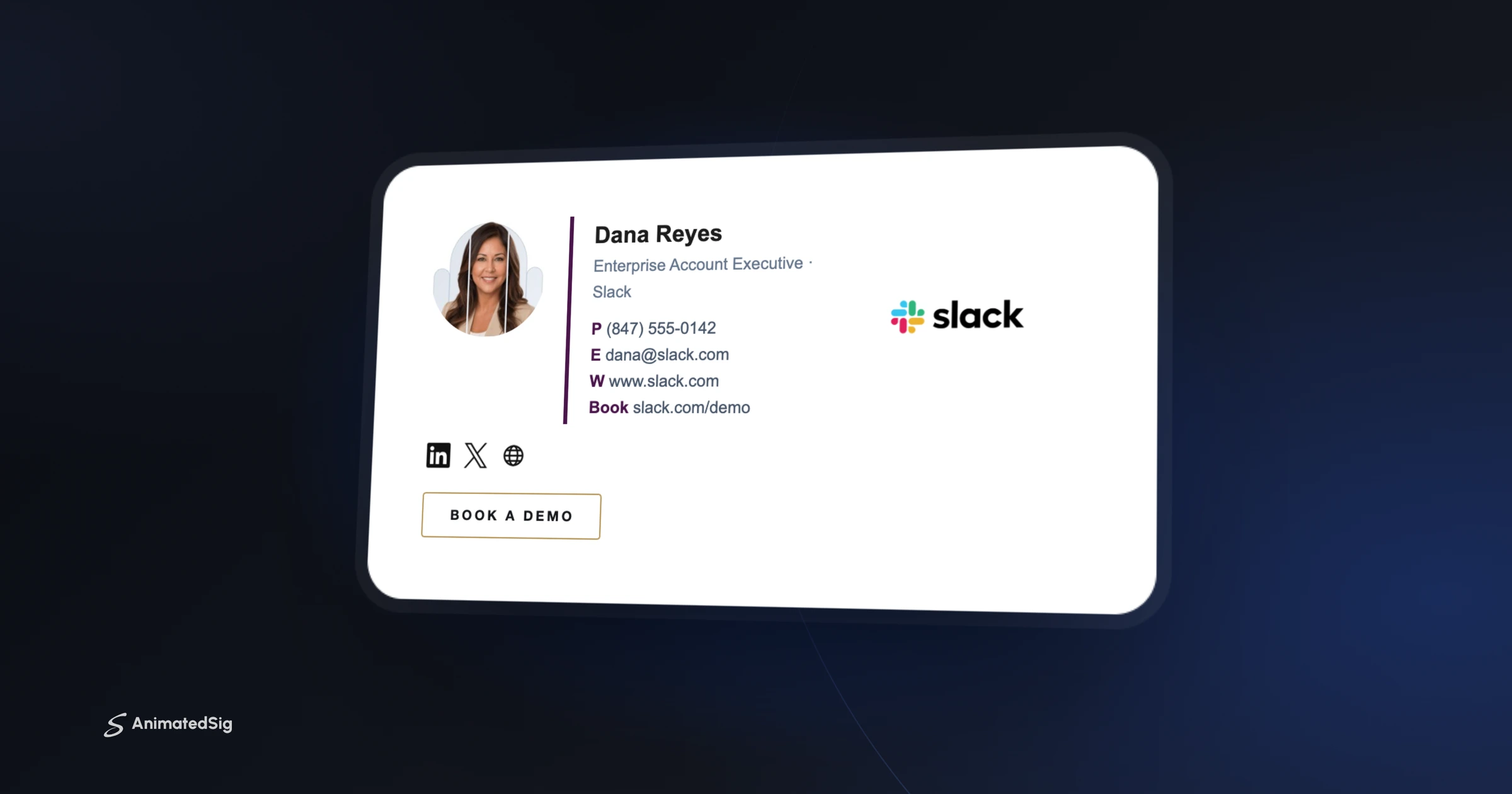

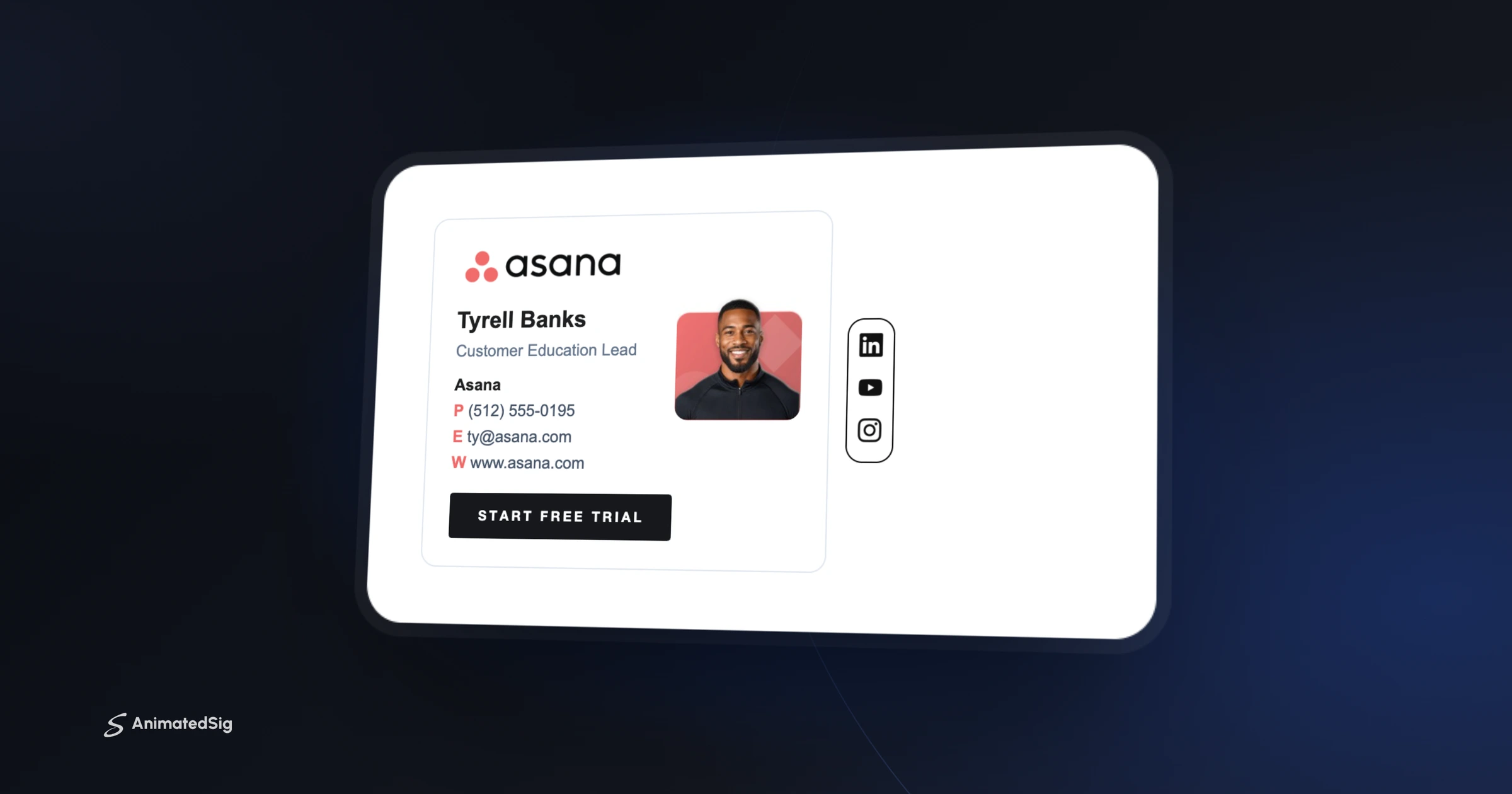
Yes, put a photo in your email signature if people email you to work with you personally, such as in sales, consulting, real estate or recruiting. A small, well-lit headshot makes you recognizable and puts a face to the name. For shared inboxes like support or billing, lead with your company logo instead.
In a signature, a small headshot does a surprising amount of work: it tells the reader there's a real person on the other end, and it makes your next email easier to place.
“Signatures with a headshot held readers' attention about 15% longer than signatures that only showed a logo.”
When a photo in your email signature helps most
- Sales, account management and business development, where the relationship is the product.
- Real estate, recruiting, consulting and coaching, where clients choose a person, not a company.
- Founders and leaders writing to investors, partners or press.
- Anyone whose emails go to people they haven't met yet.
A simple test: if a reader is likely to meet you on a video call or in person, a photo helps them recognize you when they do. If they never will, the photo is decoration, and the space may be better spent on your logo or call to action.
When a logo is the better choice
Shared inboxes like support@ or billing@ should lead with the brand, because the reader isn't writing to one person. The same goes for automated or transactional emails. In those cases, a clean logo and one clear link beat a face nobody will see again.
Privacy is a fair reason to skip the photo too. Signatures get forwarded well beyond the people you write to, so if you'd rather not have your face travel that far, a logo and a well-set name look just as professional.
How to pick a photo that works at signature size
- Crop to head and shoulders. At 80 to 100 pixels wide, anything more and your face disappears.
- Use a plain or softly blurred background so the photo doesn't compete with your details.
- Face the camera with good, even light. A recent photo matters more than an expensive one. For what else belongs in the signature, see what to put in a professional email signature.
- Upload at twice the display size so it stays crisp on high-resolution screens.
- On a team, use the same crop, background and shape for everyone so the signatures look like a set.
That display size lines up with Google's guidance: it recommends signature images 70 to 100 pixels high for Gmail. A headshot in that range sits comfortably next to three or four lines of contact details without making the signature tall.
Taking a good headshot on your phone
- Stand facing a window so soft daylight falls evenly on your face, and avoid harsh overhead lights.
- Have someone shoot from a few feet away at eye level, or use a tripod and timer, rather than holding the phone at arm's length.
- Wear what you'd wear to meet a client. Solid colors read better than busy patterns at small sizes.
- Take a dozen shots and pick the one where you look relaxed, then preview it at signature size before deciding.
File format and weight
Save the photo as a JPG, the standard format for photos, which every email client displays. Avoid WebP, which classic Outlook for Windows doesn't show (Can I email). Use PNG only when you need a transparent background, and compress the file so it loads instantly on a phone.
Round or square: how to shape your headshot
Round crops feel friendlier and square crops feel more formal, and either works. What trips people up is how the circle is made. Many signatures round off a square photo with the CSS border-radius property, which classic Outlook for Windows ignores (Can I email), so the photo shows up square there.
The reliable fix is to bake the shape into the image itself: crop the photo to a circle and save it on a background that matches your signature, or as a PNG with a transparent background. Then it looks the same in every inbox.
Should your signature photo be animated?
Animated headshots in Animated Sig are GIFs whose first frame is a normal, finished photo, so in older classic Outlook, which shows only the first frame, readers still see a polished headshot. For how each inbox treats animation, see do animated email signatures work in Gmail, Outlook and Apple Mail?
Keep it to one moving element. If your call-to-action button already pulses, let the photo stay still so the two aren't competing for attention.
Headshot checklist before you send
- 1Crop to head and shoulders, square, with a little space above your head.
- 2Export at twice the display size, for example 192 by 192 pixels for a headshot shown at 96.
- 3Host it online and reference it by a full https address rather than pasting it in from your computer.
- 4Give it alt text, such as your name, and set an explicit width and height.
- 5Send a test to Gmail and Outlook and check it on your phone. If you use Outlook, how to add an animated signature to Outlook shows where to paste it.
The short answer
If people email you to work with you, add the photo. If they email you to reach a department, lead with the logo. Either way, keep it small, sharp and consistent. You can try both versions side by side in the editor before you decide.
Frequently asked questions
Is it professional to have a photo in your email signature?
Yes, for most client-facing roles. A small, well-lit head-and-shoulders photo makes you more recognizable and personal. For shared inboxes like support or billing, a logo is usually the better choice.
What size should an email signature photo be?
Display it at roughly 80 to 100 pixels wide and upload it at twice that size so it stays crisp on high-resolution screens. Keep the file small so it loads quickly.
Should my signature photo be round or square?
Either works. What matters more is consistency, so if your team all use signatures, pick one shape, crop and background for everyone. For a round photo, crop the image file itself to a circle, because classic Outlook ignores CSS rounded corners.
Why does my signature photo show up as an attachment?
Usually because the photo was inserted from your computer instead of being linked from a web address, so the email client attaches it to each message. Host the image online, insert it by its https URL, and give it an explicit width, height and alt text so it displays inline.
Ready to build yours?
Pick a template, add your details and watch it animate live. Free to build and preview, pay once when you're ready to install.
Build my signature for free